
Table of Contents
Maintaining a clean USB-C port is essential for reliable charging and data transfer. This guide explains how to identify common port issues, safely remove compacted debris without causing damage, and utilize a digital microscope for precise, professional-grade internal inspections.
Signs Your USB-C Port Needs Cleaning
Recognizing the early indicators of a dirty port prevents severe connectivity issues and saves you from purchasing unnecessary replacement cables. A few distinct physical and software warnings usually precede a complete failure.
Charging Problems and Loose Connections
The most common sign of a dirty port is a charging cable that refuses to sit flush. If the plug wiggles easily, falls out when you move the device, or fails to "click" satisfyingly into place, compacted lint is likely sitting at the very bottom of the cavity, preventing full insertion.
Visible Dust and Pocket Lint
Because smartphones and electronics spend hours in pockets and bags, their open ports act as scoops for environmental debris. Simply looking at the bottom of your device under standard room lighting will often reveal an obvious wall of gray fuzz or dirt blocking the metal contacts.
Liquid or Debris Warning Messages
Modern operating systems are highly sensitive to port obstructions. If your phone or tablet displays a pop-up warning that moisture, liquid, or foreign debris has been detected in the USB-C port, the device will intentionally disable charging to prevent an electrical short circuit.
Prepare Your Device for Inspection
Safety and visibility are your primary concerns before inserting any tools into your electronics. Properly staging your device prevents accidental electrical shorts and ensures you can see the tiny internal components clearly.
Power Off and Disconnect All Cables
Never attempt to inspect or clean a device while it has active power running through its external connections. Unplug the device from all chargers and completely power down the operating system to eliminate the risk of a short circuit if you accidentally bridge two pins.
Set Up Good Lighting and Magnification
A standard ceiling light will not penetrate the narrow, dark cavity of a USB-C port. You must set up a focused, bright desk lamp or a dedicated ring light. Because the internal data pins are microscopic, standard human vision is insufficient for a safe inspection without optical assistance.
Check for Moisture Before Cleaning
Before proceeding, verify that the port is completely dry. If the device was recently exposed to rain or high humidity, any debris inside will have turned into a sticky sludge. Attempting to scrape wet debris will smear it across the delicate gold contacts and push it deeper into the housing.
Inspect the USB-C Port With a Digital Microscope
A standard flashlight only reveals the surface of a blockage. Using magnification transforms a dark, narrow cavity into a highly visible workspace, allowing you to identify exactly what is obstructing the connection.
Position the Port Under the Microscope
Place your powered-down device flat on the microscope's mechanical stage or a stable workbench. Angle the device so the USB-C opening faces directly upward toward the objective lens, ensuring the overhead LED lights shine straight down to the absolute bottom of the port.
Look for Lint and Small Debris
Under magnification, the true extent of the buildup becomes obvious. You will typically see tightly compressed layers of cotton fibers, pet hair, and abrasive dirt packed tightly against the back wall of the port, surrounding the delicate central pin.
Check the Connector for Visible Damage

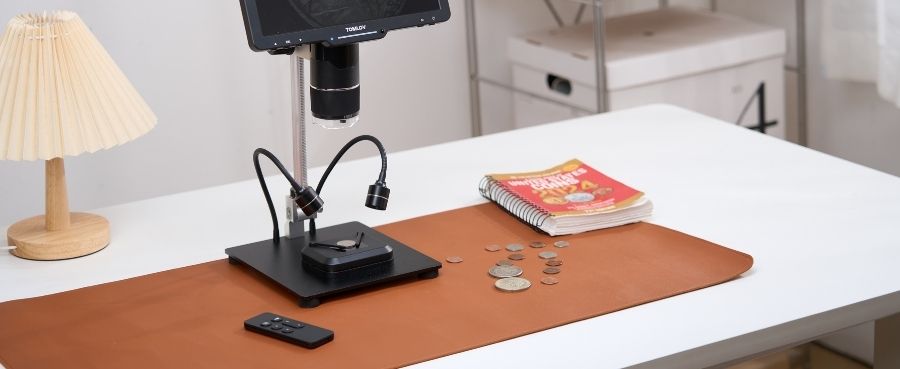
The USB-C standard relies on a highly fragile "tongue" of metal situated directly in the center of the port. Inspecting this central pin array requires excellent optical clarity to spot bent contacts, burn marks, or green copper corrosion. A versatile optical tool like the TOMLOV TRIL110 2K 3-Lens HDMI Digital Microscope excels here, allowing you to swap to a high-power lens and project the deep cavity directly onto an external HDMI monitor for incredibly precise, shadow-free evaluation before you ever touch a cleaning tool.
How to Clean a USB-C Port Safely
The internal pins of a USB-C port are incredibly fragile and easily bent. Executing the cleaning process with patience and the right non-conductive tools is critical to restoring functionality.
Remove Loose Debris Carefully
Start by using a soft-bristled, anti-static electronics brush to gently sweep the opening. If you do not have a specialized brush, a clean, dry, soft toothbrush is an excellent alternative. Gently brush parallel to the center pin to sweep out loose dust without applying downward pressure.
Handle Compacted Debris With Caution
For stubborn, packed lint, use a non-conductive tool like a wooden toothpick or a plastic dental pick. Carefully slide the pick down the extreme outer edge of the port, avoiding the fragile center pin entirely. Gently pull upward to scoop the lint out in one solid clump.
Let a Wet Port Dry Completely
If you notice sticky grime that requires a tiny drop of high-percentage isopropyl alcohol (90% or higher) to dissolve, you must wait for it to evaporate. Leave the device sitting in a well-ventilated area for at least thirty minutes to ensure the port is bone dry before turning the power back on.
Cleaning Methods to Avoid
Many common household cleaning techniques will instantly destroy the delicate data pins inside your device. Avoiding aggressive or conductive materials is just as important as the cleaning itself.
Avoid Metal Tools and Sharp Objects
Never stick safety pins, paperclips, sewing needles, or tweezers into a USB-C port. Metal tools are conductive and can short out the battery. More importantly, hard metal easily gouges the soft gold contacts and can permanently snap the fragile central tongue.
Avoid Unapproved Liquids
Never use water, household glass cleaners, or low-percentage rubbing alcohol to clean electronic ports. These liquids contain high concentrations of water that can immediately cause internal corrosion and trigger the device's permanent liquid-damage sensors.
Avoid Excessive Force and Air Pressure
While a quick burst of compressed air seems logical, it can actually force debris deeper into the charging port housing. Furthermore, tipping a can of compressed air sprays freezing liquid propellant directly onto sensitive components. If you scrape blindly with too much mechanical force, you will snap the port internally.
Inspect the Port Again After Cleaning
A thorough post-cleaning evaluation ensures no microscopic blockages remain and verifies that the fragile internal architecture survived the maintenance process intact.
Check for Remaining Debris
Place the device back under your digital microscope. Verify that the extreme bottom corners of the cavity are completely clear of lint. Even a millimeter of remaining compressed dust can prevent the charging cable from seating deeply enough to lock into place.
Confirm the Connector Looks Clear
Take a close look at the central pin array. The metal contacts should look uniformly shiny and straight. Confirm that your cleaning tools did not accidentally bend the center tongue or scrape away the gold plating that facilitates the high-speed data connection.
Test the Cable and Charging Connection
Once the port is visually clear, plug your USB-C cable into the device. You should feel a distinct, mechanical snap as the metal clips engage. Power the device on and confirm that the battery indicator shows a stable, uninterrupted charge without needing to wiggle the cord.
Final Thoughts
A dirty USB-C port is the leading cause of phantom charging issues and connectivity failures. By identifying the signs of buildup, avoiding destructive metal tools, and utilizing a digital microscope to safely guide your non-conductive picks, you can easily restore your device's connection. Taking a few minutes to properly maintain your ports extends the lifespan of your electronics and eliminates the frustration of unreliable charging cables.
FAQs
Why Is My USB-C Port Still Not Working After Cleaning?
If the port is completely free of debris but still fails to charge, the internal metal contacts may be permanently bent, corroded by liquid exposure, or the internal soldering connecting the port to the motherboard may have broken. In these cases, professional hardware repair is required.
How Often Should I Clean a USB-C Port?
There is no strict timeline; you should clean it as needed. However, if you work in dusty environments or carry your phone loose in a lint-filled pocket, a quick preventative visual inspection every three to four months can stop minor dust from becoming a compacted, hardened blockage.
Can a Digital Microscope Help Inspect a USB-C Port?
Yes, a digital microscope is the absolute best tool for this task. It illuminates the dark cavity perfectly and magnifies the microscopic gold pins, allowing you to see exactly where the debris is located so you can safely extract it without blindly scraping and breaking the central connector.


发表评论
所有评论在发布前都会经过审核。
此站点受 hCaptcha 保护,并且 hCaptcha 隐私政策和服务条款适用。